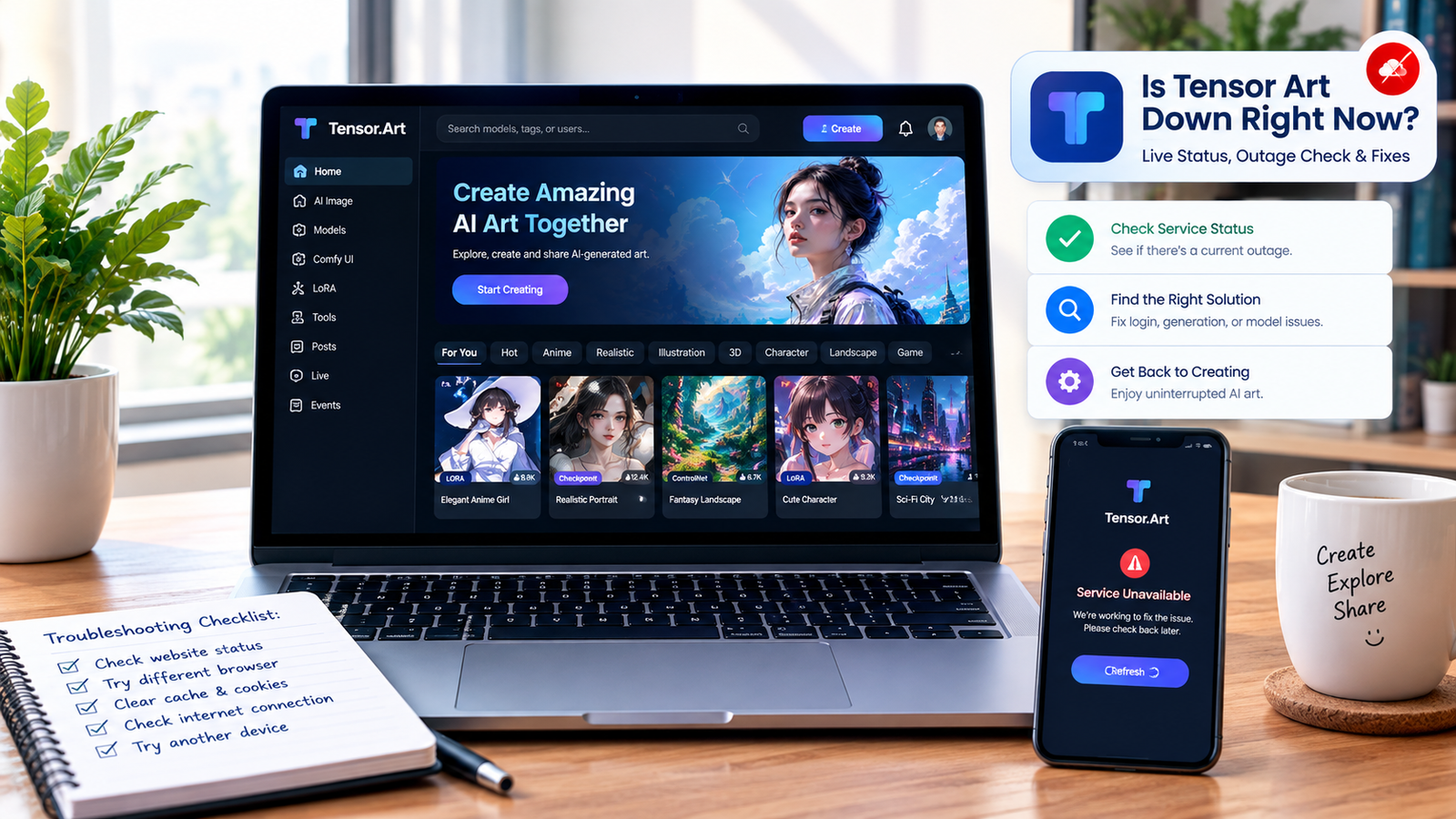
If Tensor Art is not working right now, the problem may be a platform-wide outage, a temporary generation failure, a model-specific issue, or something on your browser or network. Tensor.Art has previously experienced major incidents where all image-generation tasks were unavailable, but it has also reported problems affecting only specific models or features.
So, is Tensor Art down right now? The safest answer is: don’t judge the entire service based only on whether the homepage opens. Check the website, try a generation task, look for an official incident notice, and compare independent status signals.
At the time of research for this article, third-party monitoring signals were inconsistent, which is another reason to verify the specific feature you’re having trouble with rather than assuming the entire platform is offline.
How to Check If Tensor Art Is Down
Before changing browser settings or reinstalling anything, spend a couple of minutes checking whether the problem is actually on Tensor.Art’s side.
1. Open Tensor.Art Directly
Try loading the main Tensor.Art website in your browser.
If the homepage won’t load at all, that’s a stronger indication of an access or service problem than a single failed generation.
However, a working homepage doesn’t prove that image generation is functioning normally.
2. Try a Simple Generation
If you can access your account, create a basic image using a model you normally use.
This gives you an important distinction:
- Website doesn’t load: possible platform or network outage
- Website loads but generation fails: possible generation-service problem
- One model fails: possible model-specific issue
- Generation starts but stays queued: possible capacity or task-processing problem
- Everything works except login: likely an authentication/account issue
This distinction can save you a lot of unnecessary troubleshooting.
3. Check Tensor.Art’s Official Updates
Tensor.Art maintains an updates area containing product announcements, feature updates, bug fixes, and incident notices.
This is one of the first places I’d check when the platform suddenly stops behaving normally.
Official notices can also explain whether the problem affects:
- All image generation
- A particular model
- A specific feature
- A third-party service
- Certain account functions
Why Is Tensor Art Not Working?
There isn’t always one answer.
Tensor.Art Could Be Experiencing an Outage
The platform has previously published a Major Outage notice stating that a critical system issue temporarily disabled all generation tasks. Tensor.Art said queued tasks were paused and would resume after service restoration.
That’s an important example because users could reasonably assume their own account was broken when the underlying issue was actually platform-wide.
A Specific Model Could Be Having Problems
Tensor.Art’s official updates show that some incidents can be much narrower.
For example, Tensor.Art reported that Z-Image-Turbo, Z-Image, and Anima AD capabilities were under maintenance while the team worked on the issue.
That means you shouldn’t immediately conclude “Tensor Art is down” just because one model refuses to generate.
Try another model if possible.
An External Service Could Be Causing the Problem
Tensor.Art has also documented incidents involving external infrastructure.
One official notice said Nano Banana-related features were temporarily unavailable because of a Google Cloud Platform disruption, while other platform features remained operational.
This is why partial outages can be confusing.
The main website may work perfectly while one particular AI model or generation pipeline doesn’t.
Tensor Art Is Loading but Images Won’t Generate
This is one of the most frustrating situations.
You can open Tensor.Art, browse models, view creations, and access your account—but clicking Generate doesn’t produce an image.
Try these steps in order.
Step 1: Check Your Generation Task
Look at the task status.
Is it:
- Waiting?
- Queued?
- Processing?
- Failed?
- Completed but not displaying?
The status can tell you more than simply refreshing the page.
Step 2: Try Another Model
If one model fails repeatedly, switch to another model.
If the second model works, you may be dealing with a model-specific issue rather than a complete Tensor.Art outage.
Step 3: Use a Simple Prompt
Temporarily remove complicated workflows, unusual parameters, LoRAs, or advanced settings.
Try a basic text-to-image request.
If a simple generation succeeds, your original configuration may be responsible.
Step 4: Check During Heavy Usage
Tensor.Art has previously acknowledged periods of increased server load and introduced temporary generation restrictions during peak hours. An official notice described increased load from growing usage and video-generation demand, with restrictions on generating and queued tasks during that period.
So a slow or restricted generation system doesn’t always mean the entire website is down.
Tensor Art Generation Stuck in Queue
A stuck queue is different from a completely unavailable website.
If your task remains queued for an unusually long time:
- Wait a few minutes before submitting it again.
- Check whether other generations are completing.
- Try a simpler model or task.
- Check Tensor.Art’s incident/update notices.
- Avoid repeatedly submitting identical tasks if the service appears overloaded.
During a previous major outage, Tensor.Art specifically said queued tasks were paused and would resume after restoration.
So a frozen queue can sometimes be a symptom of a server-side incident rather than a problem with your account.
Tensor Art Login Not Working
If Tensor.Art’s website loads but you can’t sign in, don’t automatically assume the whole platform is down.
Try:
- Refreshing the login page
- Using a private/incognito window
- Clearing site cookies
- Trying another browser
- Temporarily disabling browser extensions
- Checking whether your normal sign-in method is available
- Testing from another network
Tensor.Art’s terms also state that an account is required for image-generation and image-posting functionality.
If other parts of the website work normally, a login problem may be separate from a generation outage.
Tensor Art Models Are Not Loading
Model-loading problems can happen even when the main platform is accessible.
Start with the simplest checks:
Refresh the Page
A stale browser session can prevent dynamic content from loading correctly.
Try Another Browser
If the model library works in another browser, the problem may be local to your original browser.
Test Another Model
If one model refuses to load while others work, that’s valuable evidence that the problem isn’t a complete Tensor.Art outage.
Check Official Notices
Tensor.Art’s updates section includes model maintenance and incident announcements, so it’s worth checking before spending time changing your entire setup.
Is Tensor Art Down for Everyone or Just Me?
Here’s a simple five-minute test.
Test 1: Open Tensor.Art normally.
Test 2: Try another browser.
Test 3: Try a private/incognito window.
Test 4: Test another internet connection if available.
Test 5: Try a simple image generation task.
Then compare the results.
| What You See | Most Likely Explanation |
|---|---|
| Website won’t open anywhere | Possible outage or network problem |
| Website works but generation fails | Generation-service issue |
| One model fails | Model-specific problem |
| Only your browser fails | Browser/cache/extension issue |
| Login fails but website works | Account/authentication issue |
| Tasks remain queued | Processing or capacity problem |
| Other network works | Local network/DNS issue |
This approach is much more useful than simply refreshing the same page repeatedly.
What to Do When Tensor Art Is Actually Down
If you’ve confirmed that the problem is on Tensor.Art’s side, there’s usually little value in repeatedly changing your browser settings.
Instead:
- Check official Tensor.Art incident notices.
- Save your prompts and workflow settings.
- Wait for the service team to resolve the incident.
- Avoid repeatedly submitting the same task.
- Check whether previously saved works remain accessible.
- Try again after the reported maintenance or outage period.
During a previous major outage, Tensor.Art explicitly stated that saved works and models remained safe and that no credits would be deducted during the outage.
What If Tensor Art Is Working for Everyone Else?
Then focus on your local setup.
Try this quick checklist:
Browser
- Hard refresh the page
- Clear Tensor.Art site data
- Disable extensions temporarily
- Try Chrome, Edge, Firefox, or another supported browser
Network
- Restart your connection
- Try another network
- Check whether a VPN or proxy is interfering
Account
- Sign out and sign back in
- Confirm you’re using the correct account
- Check whether the problem occurs across different features
Generation
- Try another model
- Remove advanced settings
- Use a simple prompt
- Check the task queue
Should You Wait or Keep Troubleshooting?
Here’s the easiest rule:
If everything is failing, check for an outage.
If only one feature is failing, investigate that feature.
If Tensor.Art works on another device or network, investigate your local setup.
This distinction is particularly important because Tensor.Art’s own incident history shows that outages can range from platform-wide generation failures to individual model or feature problems.
Final Answer: Is Tensor Art Down Right Now?
If Tensor Art is down right now, the fastest way to confirm it is to combine three signals: Tensor.Art’s official incident/update information, your own website and generation tests, and an independent outage monitor.
Don’t assume the entire service is offline just because an image won’t generate. Tensor.Art has experienced both broad generation outages and narrower feature/model incidents, so identifying exactly what’s failing is the key to finding the right solution.
