How to Use Microsoft Ink on
If you own a Windows 11 laptop, touchscreen device, or stylus pen, you may already have access to one of the most underrated productivity features: Microsoft Ink. Whether you’re taking notes, sketching ideas, annotating PDFs, or improving your workflow, Microsoft Ink can completely change how you interact with your PC.
But many users either don’t know where to start or never unlock its full potential.
In this beginner-friendly guide, you’ll learn how to use Microsoft Ink on Windows 11, how to set it up, which devices support it, the best features to explore, and how to troubleshoot common issues.
What Is Microsoft Ink?
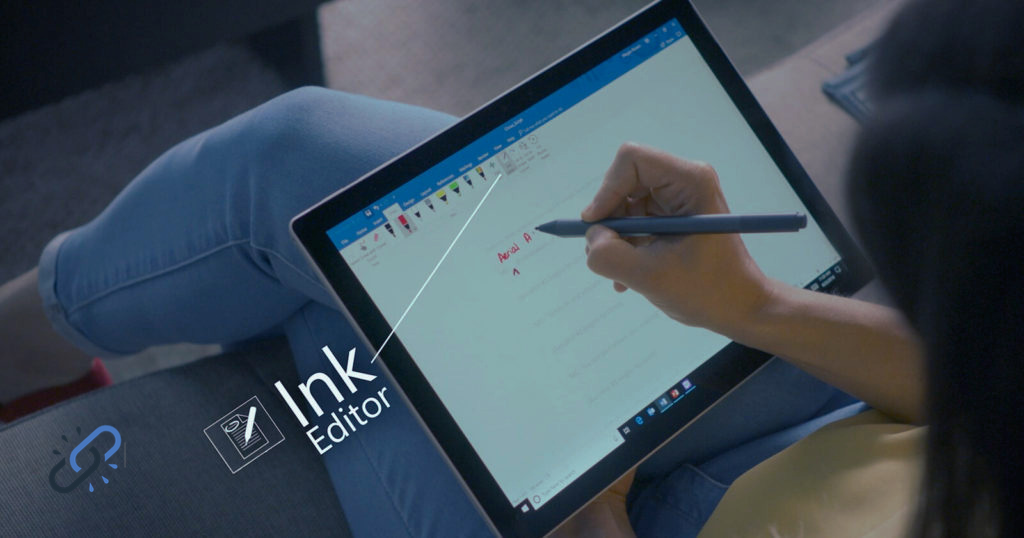
Microsoft Ink (often called Windows Ink) is a digital pen and handwriting feature built into Windows. It allows users to write, draw, annotate, and navigate their device using a stylus pen or touchscreen.
Instead of typing everything, Microsoft Ink enables a more natural experience, similar to writing on paper.
You can use Microsoft Ink for:
- Digital note-taking
- Drawing and sketching
- Handwriting-to-text conversion
- PDF annotations
- Whiteboard collaboration
- Signing documents digitally
- Productivity and brainstorming
It works especially well with devices like Microsoft Surface, touchscreen laptops, and stylus-supported tablets.
Why Use Microsoft Ink?
Before jumping into setup, let’s understand why people love Microsoft Ink.
Better Productivity
Writing with a stylus often feels faster and more natural than typing for brainstorming sessions or meetings.
More Natural Note-Taking
Students and professionals can organize handwritten notes without carrying notebooks.
Creativity and Design
Artists and designers can sketch directly onto their screens using pressure-sensitive pens.
Easy Document Annotation
Need to mark up PDFs or documents quickly? Microsoft Ink makes it simple.
Microsoft Ink Compatible Devices
Not every Windows device supports Microsoft Ink equally.
Devices That Usually Support Windows Ink
- Microsoft Surface devices
- Touchscreen Windows laptops
- 2-in-1 convertible laptops
- Pen-enabled tablets
Popular Compatible Pens
- Surface Pen
- HP Rechargeable Pen
- Lenovo Digital Pen
- Dell Active Pen
- Wacom-compatible styluses
Before buying a stylus, always check whether your device supports Windows Ink technology.
How to Enable Microsoft Ink on Windows 11
Setting up Microsoft Ink only takes a few minutes.
Step 1: Connect Your Stylus
If your pen supports Bluetooth:
- Open Settings
- Click Bluetooth & devices
- Select Add device
- Pair your stylus
Many pens connect automatically once powered on.
Step 2: Enable Windows Ink Workspace
To enable Windows Ink:
- Right-click the taskbar
- Open Taskbar settings
- Turn on pen-related shortcuts if available
You can also access Ink tools through supported applications like OneNote and Whiteboard.
Step 3: Customize Pen Settings
Go to:
Settings → Bluetooth & devices → Pen & Windows Ink
Here you can customize:
- Pen shortcuts
- Handwriting preferences
- Writing behavior
- Button actions
This helps personalize the experience based on your workflow.
Best Microsoft Ink Features You Should Try
Many users only scratch the surface of what Microsoft Ink can do.
Handwriting to Text
One of the most useful features is converting handwritten notes into typed text.
This is perfect for:
- Students
- Meeting notes
- Fast brainstorming
- Organizing ideas
Apps like OneNote make handwriting recognition surprisingly accurate.
Screen Sketching
Need to explain something visually?
You can annotate screenshots, draw diagrams, or mark content directly on-screen.
Sticky Notes Integration
Microsoft Ink works well with digital sticky notes for reminders and quick thoughts.
Whiteboard Collaboration
Microsoft Whiteboard allows teams to brainstorm visually in real time.
This is especially useful for remote work and education.
Best Apps for Microsoft Ink on Windows 11
To fully enjoy Microsoft Ink, you’ll want the right apps.
Microsoft OneNote
Best for:
- Note-taking
- Handwritten study notes
- Organization
OneNote is arguably the best Microsoft Ink app because of its handwriting tools and syncing.
Microsoft Whiteboard
Best for:
- Brainstorming
- Team collaboration
- Visual planning
Drawboard PDF
Best for:
- PDF annotation
- Signing documents
- Editing files
Adobe Acrobat
Perfect for professional document markups.
Sketchbook
Ideal for artists and digital illustrators.
How to Use Microsoft Ink for Note-Taking
Taking digital notes is one of the biggest reasons people start using Microsoft Ink.
Here’s a simple workflow:
Create Organized Notebooks
Use sections for:
- Work
- School
- Projects
- Personal ideas
Mix Typing and Handwriting
You don’t have to choose one method.
Many users type headings and write detailed notes by hand.
Convert Notes to Text
After class or meetings, convert handwriting into searchable text for better organization.
Common Microsoft Ink Problems and Fixes
Sometimes things don’t work as expected.
Stylus Not Connecting
Try:
- Recharging the pen
- Re-pairing Bluetooth
- Restarting your device
Ink Lag or Delay
Fixes include:
- Updating drivers
- Closing background apps
- Updating Windows 11
Windows Ink Workspace Missing
Go to:
Settings → Personalization → Taskbar
Ensure pen-related settings are enabled.
Handwriting Recognition Problems
Improve accuracy by:
- Writing clearly
- Updating language settings
- Training handwriting recognition
Tips to Get Better Results with Microsoft Ink
Want a smoother experience?
Use a Good Stylus
Cheap pens often struggle with accuracy and pressure sensitivity.
Keep Your Device Updated
Windows updates frequently improve Ink performance.
Learn Shortcuts
Customize pen buttons for:
- Screenshot capture
- Eraser tools
- App launching
Practice Writing Naturally
The system becomes more accurate over time.
Is Microsoft Ink Worth Using?
Absolutely.
If you already own a touchscreen Windows device, Microsoft Ink can make note-taking, creativity, productivity, and document editing far more intuitive.
Students love digital notebooks.
Professionals use it for meetings and brainstorming.
Designers use it for sketching and concepts.
And everyday users appreciate the convenience of handwritten notes.
Final Thoughts
Learning how to use Microsoft Ink on Windows 11 is easier than most people expect. With the right setup, compatible stylus, and useful apps, you can transform your Windows experience into something more natural and productive.
Start small, take handwritten notes, annotate a PDF, or experiment with OneNote. Once you get comfortable, Microsoft Ink quickly becomes one of those tools you wonder how you lived without.
Whether you’re a student, creative professional, remote worker, or casual Windows user, Microsoft Ink offers a smarter way to work and create.
